Core Features
Port Management
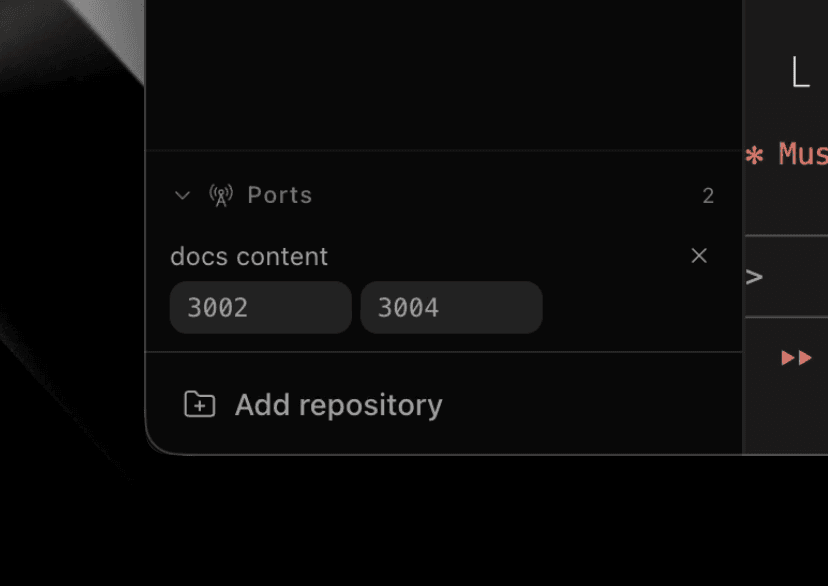
View and manage active ports per workspace
Overview
Superset does not assign per-workspace port ranges. It discovers listening ports from processes running in each workspace and lets you manage them from the UI.
Features
- View active ports - See which processes are using which ports
- Kill processes - Stop a process by clicking its port
- Workspace grouping - Ports are grouped by the workspace that owns the process
- Terminal focus - Select a port to jump back to the terminal that owns it
- Browser actions - Open local web servers in the in-app browser or externally from the port action
Port Labels
Add friendly names to automatically detected ports with a workspace configuration file. Useful for:
- Providing meaningful labels for your team
- Making common dev-server ports easier to scan in the UI
Create .superset/ports.json in your repository:
{
  "ports": [
    { "port": 3000, "label": "Frontend Dev Server" },
    { "port": 8080, "label": "API Server" },
    { "port": 5432, "label": "PostgreSQL" }
  ]
}
Fields:
port- Port number (1-65535)label- Display text shown in tooltip
Behavior:
- Dynamic port discovery is still authoritative
ports.jsononly labels ports that Superset already detects as listening- Ports without a matching label still appear
- Label entries for ports that are not currently listening are ignored
- Each workspace reads labels from its own worktree's file
- Changes are detected automatically
- Ports can be opened at
localhost:PORTfrom the browser action (remote workspace ports are forwarded to your machine first)
Error Handling:
If ports.json is malformed:
- Labels from that file are ignored until fixed
- Detected ports still appear without those labels
Tips:
- Commit
.superset/ports.jsonto share port labels with your team - Pro tip: If you want deterministic per-workspace port ranges, implement it in project lifecycle setup/teardown scripts by reserving a range in a shared file (for example
~/.superset/port-allocations.json) during setup and releasing it during teardown. See this repo's examples:.superset/setup.shand.superset/teardown.sh.
Remote Access
When a workspace lives on a remote host, the sidebar lists ports listening on that host. When you select a remote workspace, the desktop app forwards each of its ports to the same port number on your machine, so localhost:PORT reaches the host. Only ports that the workspace started are forwarded. When you select another workspace, the forwards move to that workspace.
If a local process already uses the port, the row shows local port busy. Stop the local process from the row (when a Superset workspace started it), or pick Use another port to map the remote port to a free local port. The row then shows the mapping, for example 3000 → localhost:54321.
Forwarding needs a host on the current relay running host-service 1.26 or newer. For other hosts, forward the port yourself.
Forward a port yourself
SSH: forward the port, then open http://localhost:3000 locally:
ssh -N -L 3000:localhost:3000 user@remote-hostTailscale: on the host, expose the port to your tailnet and open the URL it prints:
tailscale serve 3000Both work for servers that only listen on loopback. If the server binds 0.0.0.0, you can skip the tunnel and hit the host's Tailscale name directly (http://remote-host:3000).
Discovery and Updates
Port discovery runs in each host server, not in the desktop renderer. The host server watches terminal process trees, scans for listening ports, resolves any matching port label, and publishes port:changed events when ports appear or disappear.
The desktop sidebar keeps one ports query per online host. It patches that cached host snapshot from port events, batching bursts so updates stay responsive without refetching every time a port changes. A slower fallback refetch still runs so the UI recovers if an event is missed during reconnect.