Core Features
In-App Browser
Built-in browser pane for previewing your running services
Overview
Superset includes a built-in browser pane so you can preview your running services without leaving the app.
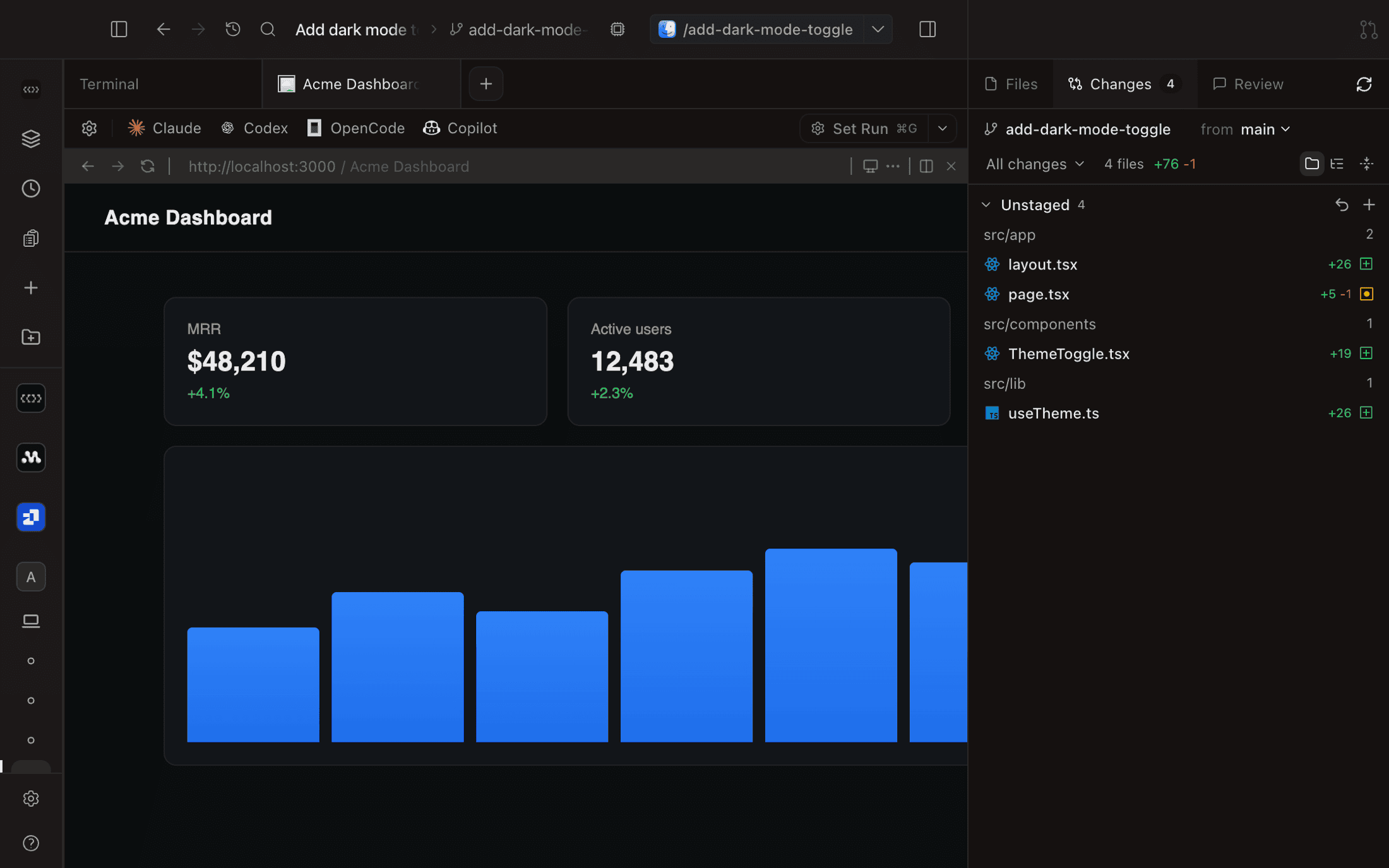
Open a Browser Tab
- Press ⌘⇧B to open a new browser tab
- Click the external link icon on any detected port in the sidebar to open it in the browser
Navigation
The browser pane includes a full address bar with:
- Back, forward, and reload buttons
- URL autocomplete based on your browsing history
- Favicon display for visited sites
Browsing History
URLs you visit are saved locally and appear as autocomplete suggestions. To clear your history:
- Click the overflow menu (⋯) in the browser toolbar
- Select Clear Browsing History
DevTools
Open the DevTools pane alongside any browser tab to inspect and debug the page running in the browser.
Design Mode
Click Design in the browser toolbar to arm an element picker inside the page. Click any element and a prompt card opens under it: describe the change, pick an agent, and send. The agent receives the element's DOM, computed styles, React component metadata, and a cropped screenshot along with your note, in an existing agent terminal or a fresh session.
- Press esc to pick a different element; esc again (or the banner's ✕) exits design mode
- Works on any page the pane can load, including your local dev server
Ports Integration
When Superset detects a port in use (e.g. localhost:3000), clicking its external link icon opens it in an in-app browser tab instead of the system browser.
For workspaces on a remote host, ports listen on that host and aren't forwarded locally; see forward a port yourself.
Drive it from the CLI and agents
Browser panes can be driven programmatically with the superset browser commands, so an agent can open a page, read it, screenshot it, and interact with it — in the same pane you're watching.
# Open a page and get its pane id back
superset browser open --workspace <id> --url http://localhost:3000 --target new-tab

# Read, screenshot, and evaluate in the pane
superset browser eval --workspace <id> --pane <paneId> --code "document.title"
superset browser screenshot --workspace <id> --pane <paneId> --out shot.png
superset browser console --workspace <id> --pane <paneId>
For full interaction — clicking, typing, scrolling, form flows — superset browser cdp prints a raw Chrome DevTools Protocol WebSocket endpoint you can point a browser-use / Playwright-class client at. The endpoint drives only that pane's page (never the Superset app itself), and pane operations are scoped to their workspace.
Agents pick this up automatically through the superset:browser skill. A pane runs against the browser's real, logged-in session — agents are instructed to treat it accordingly and to confirm before consequential actions.
Pane or standalone browser?
The superset:browser skill is engine-generic with the in-app pane as the default: when a page is (or can be) open in a workspace pane — previewing a dev server, verifying UI you're watching, clicking through a flow — agents use the superset browser commands above.
Some targets are out of the panes' reach: a real Chrome window outside Superset, a host running without the desktop app attached, or work that needs an isolated or cloud browser. For those, the skill routes to Browser Use 3.0 as a second engine.
Browser Use 3.0
Optional third-party software
Browser Use is built by Browser Use, not by Superset, and nothing in Superset requires it — the in-app pane engine works with no extra install. Only add it if you want standalone automation, and note that attaching it to your running Chrome hands agents your signed-in sessions.
Browser Use 3.0 is a CLI that lets agents execute Python against a browser over the Chrome DevTools Protocol. It isn't bundled with Superset — agents check for it and ask before installing. To install it yourself (requires uv) so the browser-use command lands on your PATH:
uv tool install browser-use
browser-use --help
You can also run it ephemerally with uvx --from 'browser-use[cli]' browser-use …, but that doesn't add browser-use to your PATH — each call needs the full uvx --from prefix.
By default it attaches to your running Chrome — your real, signed-in profile — so the skill requires your explicit consent before taking that path; otherwise agents use a scratch browser or a Browser Use cloud browser (which bills until stopped, so they ask first and stop it after). browser-use --doctor diagnoses connection problems, and browser-use skill prints the engine's own usage reference.
Browser Use can also drive an in-app pane: point it at the pane's endpoint from superset browser cdp (as BU_CDP_WS) and the pane presents itself as a single page target. For panes the superset browser verbs are the simpler default, but this lets Browser Use's harness reach the same pane when you want it.